- Introduction
- The Big Picture: Seven Layers of Extension
- Choosing the Right Model
- Core Configuration
- Daily Commands and Interactions
- The Right Workflow: Explore, Plan, Implement, Commit
- Best Practices
- Starter Kit for New Projects
- FAQ
- Summary
Introduction
You installed Claude Code, set up the API key, and had your first “wow” moment. Then reality sets in. Most people hit the same three walls:
- “Why did it break my code?” — You asked for a small feature, and it rewrote three files you never mentioned.
- “Why is it getting dumber?” — The longer the session runs, the slower and more forgetful it becomes.
- “Why does it treat everyone the same?” — Every session starts from zero, knowing nothing about your stack, your conventions, or your project.
Here is the uncomfortable truth: these are not model problems. They are configuration problems. Anthropic states it plainly in its enterprise guide:
Model capability is the floor. Configuration quality is the ceiling.
Spending an hour on good configuration pays off more than chasing the newest model version. This article is the missing manual. It covers three skills, one for each wall:
- Control it — permissions, modes, and the rewind button
- Manage its context — the
/compact//cleardiscipline - Personalize it — the three-layer memory system
The Big Picture: Seven Layers of Extension
Before diving into details,a typical directory structure for a Claude Code project is as follows:
1 | your-project/ |
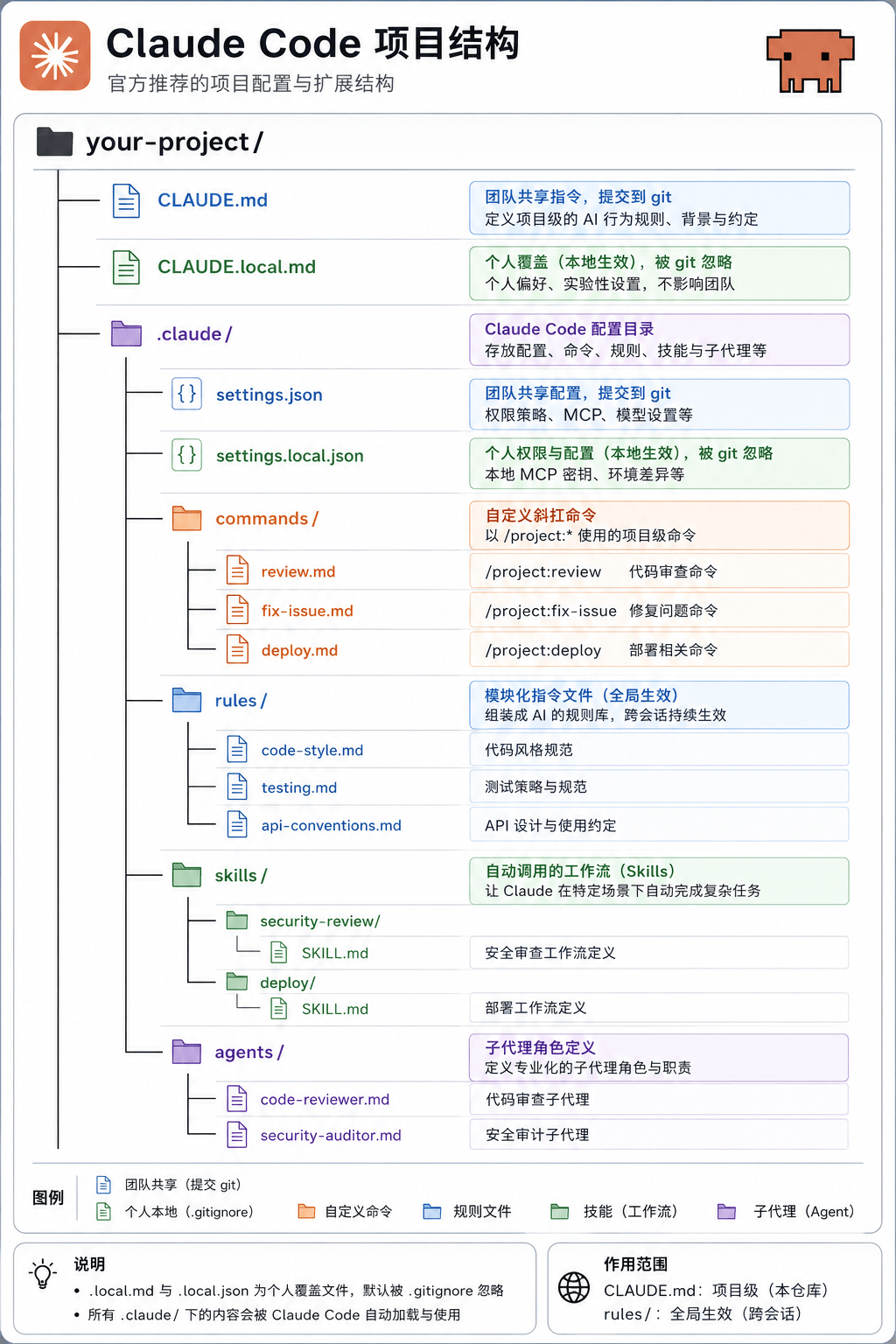
In essence, Claude Code’s capabilities are organized as 7 extension layers (the official term is Harness):
1 | Layer 7 Subagents Independent contexts working in parallel |
| Layer | What it is | When you need it |
|---|---|---|
| CLAUDE.md | Project handbook, auto-loaded every session | Day one |
| Hooks | Event triggers that run automatically at specific moments | Once you want guardrails |
| Skills | Knowledge packs the AI loads on demand | Repeated workflows |
| Plugins | Skills + Hooks + MCP bundled for distribution | Sharing with a team |
| LSP | IDE-level code navigation for the AI | Large codebases |
| MCP | Connections to external tools and data | GitHub, DBs, Jira… |
| Subagents | Parallel workers with their own context | Research-heavy tasks |
Layers 1–3 are basic configuration; layers 4–7 are advanced extensions. This article focuses on the basics plus the working habits that make them pay off.
Choosing the Right Model
Once the API is configured, the first question is: which model should I use?
Model Comparison
| Model | Speed | Code Quality | Reasoning | Cost | Recommended For |
|---|---|---|---|---|---|
| Claude Haiku 4.5 | Very fast | Good | Medium | $ | Simple completions, formatting, small fixes |
| Claude Sonnet 4.6 | Fast | Excellent | Strong | $$ | Daily development, feature work (default pick) |
| Claude Opus 4.7 | Medium | Top-tier | Very strong | $$$ | Complex architecture, hard bugs, algorithmic problems |
Pricing reference (verified 2026-05-18):
| Model | Input | Output | Typical role |
|---|---|---|---|
| Claude Haiku 4.5 | $1 / M tokens | $5 / M tokens | Low-cost batch processing |
| Claude Sonnet 4.6 | $3 / M tokens | $15 / M tokens | Daily development workhorse |
| Claude Opus 4.7 | $5 / M tokens | $25 / M tokens | Reserved for hard problems |
Tip: Sonnet is enough for daily development. Switch to Opus only when a problem is genuinely hard. Haiku shines when you batch-process many simple tasks.
Scenario-based recommendations:
| Scenario | Model | Reason |
|---|---|---|
| Daily feature development | Sonnet | Best speed/quality balance |
| Simple edits / formatting | Haiku | Good enough, cheapest |
| Complex architecture design | Opus | Strongest reasoning, worth the cost |
| Debugging (simple) | Sonnet | Usually enough |
| Debugging (hard) | Opus | Needs deep reasoning |
| Tight budget | Cheaper third-party APIs | Pick by current price |
| Offline / privacy-sensitive | Local models (Ollama) | Fully local, free |
A real comparison on the same task — build a small Express.js TODO API with GET and POST endpoints:
| Model | Time | Quality | Extras |
|---|---|---|---|
| Haiku | ~3s | Correct, concise | None |
| Sonnet | ~8s | Correct, with input validation and error handling | Added CORS and body-parsing middleware |
| Opus | ~15s | Correct, clean architecture | Layered design, detailed comments, full error handling |
Tip: There is no “best model”, only the right model for the task. Using an expensive model on trivial work wastes money; using a cheap model on hard work wastes time.
Four Ways to Switch Models
From highest to lowest priority:
1. Startup flag (one-shot):
1 | claude --model opus # strongest reasoning |
2. Slash command (during a session):
1 | /model # interactive model picker |
The choice is saved to user settings and survives restarts.
3. Environment variable (persistent):
1 | export ANTHROPIC_MODEL="sonnet" |
4. Settings file (persistent, recommended):
1 | // ~/.claude/settings.json — applies to all projects |
1 | // project/.claude/settings.json — this project only |
Note: Priority order:
--modelflag >ANTHROPIC_MODELenv var >modelfield insettings.json. The/modelcommand writes its choice into the user settings file.
Settings File Hierarchy
Claude Code has three levels of settings files. Each level overrides the one above it:
1 | Global ~/.claude/settings.json (all projects) |
| File | Scope | Committed to Git | Priority |
|---|---|---|---|
~/.claude/settings.json |
Global (all projects) | No | Low |
project/.claude/settings.json |
Project (team-shared) | Yes | Medium |
project/.claude/settings.local.json |
Project (personal) | No (gitignored) | High |
The same pattern applies to CLAUDE.md, as we will see next.
Core Configuration
settings.json: Permissions and Defaults
settings.json controls what Claude Code is allowed to do without asking. The most important block is permissions:
1 | { |
Warning: Be careful with permissions. An allowlist that is too broad lets the AI do things you did not intend. If you are a beginner, keep the defaults and confirm every action — the confirmation prompts are your chance to review each step.
CLAUDE.md: The Project Handbook
CLAUDE.md is the single most important configuration file. Think of it as the onboarding handbook you would write for a new intern: project background, tech stack, coding conventions, and current status.
Without it, Claude Code must re-discover your project in every session. With it, the AI knows the full context from the first message.
A template you can copy and adapt:
1 | # Project Name |
Three levels of CLAUDE.md. Most people only know the project-root one, but there are actually three levels, and they stack:
| Level | Path | Scope | What to put there |
|---|---|---|---|
| Global | ~/.claude/CLAUDE.md |
Every project | Personal habits (“always reply in English”, “never auto-commit”) |
| Project | project/CLAUDE.md |
This project | Stack, architecture, conventions, status (commit to Git, share with team) |
| Folder | src/payment/CLAUDE.md |
That subdirectory | Module-specific rules (e.g. pitfalls of the payment module) |
Priority: folder > project > global. They add up; they don’t conflict.
Two official ways to create them:
/initfor the project level — runclaudein the project root, type/init, and Claude scans the project and drafts a CLAUDE.md for you to refine. Works best once the project has some substance./memoryfor the global level — type/memoryin a session and pick the global CLAUDE.md to edit it. Restart Claude Code afterwards for global changes to apply.
Best practices:
- Keep it current — update it as features land and pitfalls are found.
- Be specific — exact version numbers, real directory structure.
- Write down the forbidden — “do not touch the migrations” is as valuable as any instruction.
- Stay concise — the AI needs key facts, not an essay.
- Only top-level invariants — Karpathy’s publicly shared rules file got 100k+ stars with just a few hundred lines of universal rules. If a rule is not top-level, invariant, and strict, it belongs elsewhere (see the next section).
Three Layers of Memory
Claude Code’s memory comes in three layers. Each answers a different question:
| Layer | What it is | Loaded how | Maintained by |
|---|---|---|---|
| 1. CLAUDE.md | Rules you write explicitly | Fully loaded at session start | You |
| 2. Auto Memory | Notes Claude writes itself | Index first, subfiles on demand | Claude, reviewed by you |
| 3. Reference docs | Specialist docs you author | Only when a task needs them | You |
Layer 1 — CLAUDE.md is your explicit rulebook, covered above.
Layer 2 — Auto Memory is Claude’s own notebook. Habits, feedback, and project facts you never wrote down get recorded by a background agent. Enable it with /memory and select “Enable Auto Memory”. It records four kinds of entries:
| Type | Meaning | Example |
|---|---|---|
user |
About you | Your role, preferences (“dislikes dark UIs”) |
feedback |
Corrections you gave | “Don’t do it that way” / “Yes, exactly like that” |
project |
Project facts | Progress, decisions, tech choices |
reference |
External pointers | “The design doc lives at docs/design.md” |
How it feels in practice:
- It is project-scoped — each project accumulates its own memory.
- It is cheap — only an index (
memory.md) is loaded; subfiles are read only when relevant. - Press
Ctrl+Oduring a session to inspect which memories were actually used. - If it remembered something wrong, just say “forget that I dislike dark themes” and it deletes the entry.
Tip: One sentence to tell them apart: CLAUDE.md is the explicit rulebook, fully injected; Auto Memory is the implicit notebook, injected on demand. Together they make Claude Code understand you better over time.
Layer 3 — self-authored reference docs (progressive disclosure). Some knowledge is too specialized or too long for CLAUDE.md, but must be available when needed. Write dedicated docs and add pointers in CLAUDE.md:
1 | ## Reference Docs |
Claude reads the full document only when the task requires it — accurate when it matters, zero overhead otherwise.
Insight: All “memory” in an agent is the same trick: injecting compressed context into the model at the right moment. These mechanisms are prompt engineering, organized into layers for you.
.claudeignore
Like .gitignore, but for the AI — tell Claude Code what it should never bother reading:
1 | # .claudeignore |
Daily Commands and Interactions
Mastering daily usage is like learning the pedals and mirrors before driving on the highway.
Starting a session:
1 | claude # start in the current directory |
Before executing an action, Claude Code asks for confirmation:
| Action | Example | You can |
|---|---|---|
| Create file | index.html |
Enter / y to confirm |
| Edit file | app.js line 10 |
n to refuse |
| Run command | npm install express |
Type extra info to adjust the plan |
| Delete file | temp.txt |
Slash Command Cheat Sheet
Type / in the input box to see the full list; /help explains every command.
Basics you will use daily:
| Command | Purpose | When to use |
|---|---|---|
/help |
Show help | When you forget a command |
/model |
View/switch the model | Switching to a stronger/faster model |
/compact |
Compress conversation context | Long sessions, AI starts “forgetting” |
/clear |
Wipe the conversation entirely | Starting a brand-new task |
/context |
Show what eats the context | Diagnosing token usage |
/memory |
Edit CLAUDE.md and auto memory | Managing memory layers |
/status |
Session status | Check model and token usage |
/cost |
Session cost | Watching spend |
/review |
Code review | After finishing a feature |
/init |
Generate CLAUDE.md automatically | First thing in a new project |
/plan |
Enter Plan Mode (read-only) | Opening move for complex tasks |
/rewind |
Roll back Claude’s changes | The “undo button” |
/resume |
Restore a past session | Continuing yesterday’s work |
Extension management:
| Command | Purpose |
|---|---|
/skill <name> |
Invoke a Skill manually |
/agent |
Create, list, or invoke subagents |
/plugin |
Plugin manager (discover / installed) |
/login |
Sign in with a Claude subscription |
The Four Commands You Must Master
/compact — context compression. This is the cure for “the AI gets dumber over time”. Every message, every file read, every command output squeezes into the context window. The window may be 200K tokens, but only 60–80% of it stays effective, and quality degrades as it fills up. /compact summarizes the conversation so far and frees space:
1 | > /compact |
/context — the context monitor. Run it before compacting to see what is eating the window:
1 | > /context |
Tip: My habit: once
/contextshows more than 60% usage, run/compact. Don’t wait for auto-compaction near full capacity — by then the AI has already started forgetting.
/compact vs /clear:
| Command | Effect | When |
|---|---|---|
/compact |
Compresses history into a summary, keeps key decisions | Same task, conversation too long |
/clear |
Full wipe, fresh start | One task fully done, starting another |
Rule of thumb: Prefer several
/clears with fresh background over one endless conversation. Every/cleargives the AI a chance to refocus.
/rewind — the undo button (double-tap Esc also works). When Claude changes code and you don’t like the result, /rewind opens a rollback menu:
1 | [Rewind] Choose rollback mode: |
Warning:
/rewindonly undoes files Claude itself edited. Terminal commands it ran (installing dependencies, modifying a database) are NOT rolled back. The real undo button is Git — see Git Is Your Save Point.
Keyboard Shortcuts
| Shortcut | Action |
|---|---|
Enter |
Send message / confirm action |
Shift + Enter |
Also sends! (not a newline — beginners constantly send half-written prompts this way) |
Option + Enter (Mac) / Ctrl + Enter (Win) |
Newline without sending |
Ctrl + C |
Interrupt current operation |
Esc |
Cancel generation in progress |
Esc × 2 |
Open the /rewind rollback menu |
Shift + Tab |
Cycle Normal → Auto-Accept → Plan modes |
↑ / ↓ |
Browse message history |
Ctrl + B |
Send the running command to the background |
Ctrl + O |
Inspect Auto Memory contents used in this session |
Power Interactions: !, @, and Images
1. ! — Bash mode. Run a shell command without leaving the conversation:
1 | > !npm run dev |
If the command never exits (like a dev server), press Ctrl+B to push it to the background and keep talking.
2. @file — precise context. Claude does not load your whole project into context; it greps on demand. Naming a file with @ saves it the exploration cost:
1 | > Following the style of @src/auth/login.ts, add register.ts under @src/auth/ |
Tip: Counterintuitive but true: shorter instructions can cost more tokens, because Claude must explore the project to guess what you mean. Specific instructions + explicit
@references are cheaper and more accurate.
3. Paste images. Drag an image into the input box or press Ctrl+V. Great for:
- Turning a design mockup into UI code
- Pasting an error screenshot for diagnosis
- Implementing a system from an architecture diagram
4. Useful startup flags:
1 | claude -c # --continue: resume the last session |
Warning:
--dangerously-skip-permissionsis only sane in a sandbox, a project fully covered by Git, or a throwaway experiment. Never in production code. Beginners should stay in the default mode.
The Right Workflow: Explore, Plan, Implement, Commit
The officially recommended workflow has four phases:
1 | ┌──────────┐ ┌──────────┐ ┌──────────────┐ ┌──────────┐ |
| Phase | What you do | What the AI does | Mode |
|---|---|---|---|
| Explore | Point at the area to change | Reads files, greps, traces references | Plan Mode |
| Plan | Review the proposal | Writes a detailed plan, checks edge cases | Plan Mode |
| Implement | Approve and switch modes | Edits files in order, runs builds | Normal / Auto-Accept |
| Commit | Ask for a commit message | Generates the message, commits | Normal |
Tip: Why bother with phases? Picture this: you say “add soft deletes”, and 15 minutes later the AI has touched 14 files, modified a global query filter, and broken 3 existing endpoints — leaving you to revert by hand. That is the cost of skipping the plan. Five minutes in Plan Mode routinely saves thirty minutes of rework.
Plan Mode and the Three Operating Modes
Claude Code has three mutually exclusive operating modes:
| Mode | Behavior | Good for | Status bar |
|---|---|---|---|
| Normal (default) | Every edit and command needs confirmation | Small tasks, careful review | (no marker) |
| Auto-Accept | Executes without asking | Approved batch work | accept edits on |
| Plan Mode | Fully read-only: analyze, question, propose | Complex tasks, unfamiliar code, architecture | plan mode on |
In Plan Mode the AI can only use read-only tools:
| Tool | Purpose |
|---|---|
| Read | View file contents |
| Glob | Find files by pattern |
| Grep | Search file contents |
| LS | List directories |
| WebSearch / WebFetch | Research online |
| Task | Delegate research to a read-only subagent |
| AskUserQuestion | Ask you clarifying questions |
Writing files, editing files, and running shell commands are strictly forbidden in Plan Mode — nothing in your project changes until you approve a plan.
Four ways to enter Plan Mode (from temporary to permanent):
1 | 1. Shift+Tab twice → cycle into Plan Mode (most common) |
First Shift+Tab switches to Auto-Accept, the second to Plan Mode, the third back to Normal.
Note: On some Windows terminals
Shift+Tabskips Plan Mode and only toggles Normal/Auto-Accept. UseAlt+Mthere instead — this is a known issue.
With defaultMode: "plan" in the project’s .claude/settings.json, every session in that project starts in Plan Mode — a good default for complex codebases.
When to Plan and When to Just Do It
A one-line rule:
If you can describe the expected diff in one sentence, skip planning. If you can’t, plan first.
| Task | Recommended mode | Reason |
|---|---|---|
| New project from scratch | Plan Mode | Architecture decisions first |
| Complex feature (auth, billing, soft delete) | Plan Mode | Touches many files, revert cost is high |
| Large refactor, cross-file migration | Plan Mode | Impact must be assessed |
| Exploring an unfamiliar codebase | Plan Mode | Read-only by nature |
| Fixing a well-defined bug | Normal | Scope and goal are clear |
| Renaming a function or variable | Normal | The diff fits in one sentence |
| Batch work following an approved plan | Auto-Accept | Don’t interrupt execution |
Core principle: Simple tasks just do it; complex tasks plan first. When unsure, choose Plan Mode — it is always the safer bet.
A cost-optimization variant: claude --model opusplan uses Opus for the planning phase (strong reasoning, expensive) and Sonnet for implementation (fast, cheap) — think hard with the expensive model, type with the cheap one.
Walkthrough: Building a Hello API with Express
Let’s run the full workflow on a tiny project.
Step 1 — Initialize:
1 | mkdir hello-api && cd hello-api |
Then, in the conversation:
1 | Initialize a Node.js Express project: |
Claude lists each action and asks before running it:
1 | [Claude] Will run: npm init -y → y |
The generated app.js:
1 | const express = require("express"); |
Step 2 — Run and verify:
1 | Start the server and test /hello with curl |
Then open http://localhost:3000/hello in a browser. If you see the JSON below, it works:
1 | { |
Step 3 — Commit:
1 | Initialize a Git repo and commit with the message "Init Express Hello World API" |
Claude runs git init, git add ., and git commit. Four phases done: explored nothing (new project), planned inline, implemented, committed.
Best Practices
Prompt Writing Principles
1. Be specific, not vague:
1 | BAD: Add a login feature |
2. Point at existing code as a reference:
1 | GOOD: Following the style of /api/bookmarks/route.ts, create similar CRUD |
3. Ask for a plan before execution:
1 | GOOD: I want to add search to the bookmark manager. First list which files |
4. One thing at a time:
1 | BAD: Add search, tag management, auth, and export — all at once |
Context Management
A quick decision table for the symptoms you will actually see:
| Symptom | Cause | Action |
|---|---|---|
| Responses slow down, quality drops | Context nearly full | /context → if over 60%, /compact |
| AI “forgets” early decisions | Early info pushed out of the window | /compact now |
| AI re-asks already-answered questions | Confused context | /clear, start fresh |
| Switching to a completely different task | Avoid cross-task pollution | /clear, start fresh |
| Want a rule to persist forever | Needs persistent memory | /memory or write it into CLAUDE.md |
Git Is Your Save Point
Think of Git as your game save system. Before a boss fight you save; if you lose, you reload. Projects with Claude Code work exactly the same way: save at every good checkpoint; reload when things go wrong.
One property of AI coding makes this non-negotiable: Claude Code is non-deterministic. Ask for the same thing twice and you may get two different implementations. That is not a bug — it is the nature of the tool. Build the muscle memory: commit after every successful step. With Git as a safety net, you can let Claude try bold approaches.
1 | Golden rule: commit BEFORE letting the AI make big changes |
1 | # Save before starting |
Pitfall: The most common and most painful beginner mistake is letting the AI rewrite code without committing first — then the damage cannot be undone. Remember: save before you change.
Controlling Costs
| Strategy | How | Typical savings |
|---|---|---|
| Tiered models | Haiku for simple, Sonnet for normal, Opus for hard | 30–50% |
| Precise prompts | Fewer correction rounds | 20–30% |
Timely /compact |
Avoid re-sending long context | 10–20% |
/cost monitoring |
Know what you spend in real time | — |
| Budget cap | Monthly limit in the Anthropic Console | Prevents blowups |
1 | > /cost |
Anthropic has also published six concrete habits for saving tokens — clearing sessions between tasks, locking the model early to protect the prompt cache, @-mentioning files, silencing noisy command output, checking /context in a fresh session, and compacting before a break. I summarized them with the official numbers here: [Six money-saving tips for Claude Code].
Working in Large Codebases
Everything above is general advice. For multi-developer codebases with hundreds of thousands of lines, Anthropic’s large-codebase playbook adds six practices. The core tension: even a huge context window is smaller than a real codebase. The first three are discipline; the last three are weapons.
Discipline 1 — /init on day one. Run /init in a new project, then manually add three things to the generated CLAUDE.md:
| Must add | Why | Example |
|---|---|---|
| Directory map | So the AI knows where code lives | “Auth logic in src/auth/, UI in src/components/“ |
| Forbidden zones | So the AI breaks nothing | “Never modify prisma/migrations/ or vendor/“ |
| Team conventions | Consistent style | “All APIs return { success, data, error }” |
Discipline 2 — small, focused tasks. The most dangerous move in a big codebase is throwing one huge request at the AI:
1 | BAD: Refactor the whole payment module: new risk control, reconciliation, |
Rule of thumb: one task should touch ≤ 5 files / ≤ 200 changed lines. Beyond that, split it.
Discipline 3 — reset context frequently. Many beginners believe a longer conversation means a smarter AI. In large codebases the opposite is true: stale fragments and failed attempts from earlier tasks pollute later ones.
| Moment | Action |
|---|---|
| Task done (PR merged) | /clear |
| Same task, conversation too long | /compact |
| Want a completely fresh start | Quit and restart claude |
Weapon 1 — Plan Mode first. In an unfamiliar codebase, or any change that touches many places, start with /plan or Shift+Tab twice. Explore read-only, approve a plan, then act. Rollback cost stays near zero.
Weapon 2 — offload research to subagents and Skills. Investigations like “find every call site of this deprecated API” or “map this module’s dependency graph” burn tokens. Don’t run them in the main session — delegate to a subagent (only the conclusion returns) or package the workflow as a reusable Skill.
Weapon 3 — connect MCP and LSP. A real engineer does more than read code: they check Jira, query databases, and use “go to definition”. MCP brings those abilities in:
| Integration | Solves | Example |
|---|---|---|
| GitHub MCP | PRs, issues, CI logs | “Was this bug discussed in PR #1234?” |
| Database MCP | Direct queries | “How many users have deleted_at set?” |
| Jira / Linear MCP | Task cards | “Implement per PROJ-123” |
| LSP | Precise jumps, types, references | IDE-grade “find all references” |
| Sentry / Datadog MCP | Alerts, stack traces | “Show 5xx errors from the last hour” |
Quick-reference card:
| Practice | Command / entry | When | Payoff |
|---|---|---|---|
| Project init | /init + manual edits |
First day on a project | Map + forbidden zones |
| Task splitting | (habit) | Before every request | No mass breakage |
| Context reset | /clear / /compact |
Task end / long context | No pollution, fewer tokens |
| Plan first | /plan or Shift+Tab ×2 |
Complex tasks | Explore before acting |
| Offload research | Subagent / Skill | Frequent investigations | Protects main context |
| Tool integrations | claude mcp add ... |
Project setup | Sees beyond the code |
Three Overlooked Advanced Tips
These three appear repeatedly in official guidance, yet beginners skip them most often.
1. Start in a subdirectory, not the repo root. Counterintuitive in monorepos, but critical:
1 | # BAD: start at the monorepo root |
Pair this with a small CLAUDE.md per subdirectory listing that directory’s own test and lint commands — so the AI never runs the whole repo’s test suite after touching one service.
2. Review your configuration every 3–6 months. Instructions written for last year’s model can actively hurt on this year’s. Two real examples from Anthropic:
| Outdated config | Once useful | Now harmful |
|---|---|---|
| “Only edit one file per refactor” in CLAUDE.md | Kept old models focused | New models coordinate across files; the rule is a straitjacket |
A hook running p4 edit on every write |
Needed before native Perforce support | Redundant — Perforce is now supported natively |
Set a calendar reminder: after every major model release, re-read CLAUDE.md, .claude/settings.json, hooks, and skills, and ask: Is this rule still needed? Is there a better way now? Which model’s weakness was this compensating for? If Claude Code feels stuck at a plateau, the problem is often not the model — it is configuration that hasn’t kept up.
3. Teams need an owner (DRI / Agent Manager). For teams rather than individuals: the organizations that roll out Claude Code fastest put a small group in charge of the foundations first.
| Team size | Role | Responsibilities |
|---|---|---|
| Small (< 20) | DRI — one interested volunteer | Project CLAUDE.md, shared Skills, plugin choices |
| Mid-size | Agent Manager (part PM, part engineer) | Cross-team rollout, permission policy, security |
| Large / regulated | Cross-functional working group | Engineering + security + governance + compliance |
Why it matters: a developer’s first experience with Claude Code decides whether the whole rollout succeeds. If day one is “the AI wrecked my code”, winning people back is hard.
Starter Kit for New Projects
Every new project starts with Claude Code as a fresh hire: it doesn’t know your stack, your forbidden zones, or your conventions. The default Claude Code is a generalist that can do anything and knows nothing. The fix: turn one-time explanations into reusable config files. Four files, set up in five minutes, and every future project starts pre-trained.
File 1 — global CLAUDE.md (your personal defaults):
1 | ## Communication |
Layer a project-level CLAUDE.md on top with the stack, directory map, commit format, and forbidden zones. Maintenance rule: every time Claude burns you, add one line to CLAUDE.md. After three months the file becomes “every mistake Claude ever made on this project — prevented”. The most productive sentence you will ever type: “Update CLAUDE.md so this never happens again.”
File 2 — settings.json (let the safe stuff through, lock the dangerous stuff down):
1 | { |
Result: zero prompts for daily operations, automatic block on dangerous ones. Adjust allow to your toolchain (yarn, bun…); keep the deny list as your security floor.
File 3 — .gitignore additions (protect AI-tool config and secrets from being committed):
1 | # AI tool local config |
Note the split: .claude/settings.local.json is ignored, but .claude/settings.json and .claude/skills/ are committed — team config is shared, personal preferences stay personal.
File 4 — a handful of Skills (your pre-flight checklists as commands). Each Skill is a Markdown file at .claude/skills/<name>/SKILL.md. The three most valuable:
/review— review code by severity: CRITICAL (logic errors, null derefs, race conditions, security holes) → WARNING (N+1 queries, missing error handling) → INFO (naming, dead code). Ends with “X critical, Y warnings, Z info”./commit— runsgit statusandgit diff --stat, groups changes logically, writes messages intype(scope): descriptionformat./deploy-check— pre-release gate: type check → tests → lint → build → search for strayconsole.log→ verify.envreferences → confirm a clean working tree. Ship only when everything is green.
Three ways to install the kit:
| Situation | How |
|---|---|
| Brand-new project | Copy the templates, fill in the stack, commit config in the first commit |
| Existing project | Add CLAUDE.md and .gitignore to the root, merge settings.json, drop in skills |
| All projects at once | settings.json + skills in ~/.claude/ (global); CLAUDE.md stays per-project |
Recommended: permissions and Skills global, CLAUDE.md per project.
The kit is alive. The template’s value is not “use as-is” but “start here and let it grow into your project”: CLAUDE.md gains one line per burn, settings.json grows with your toolchain, Skills absorb your team’s conventions. Three months later, the template has been worn into a different shape by your habits — and that change is the value.
FAQ
Q: Installation fails with ENOENT: no such file or directory
Corrupted npm cache. Run npm cache clean --force, then reinstall.
Q: Installed, but the claude command is not found
The npm global path is not in your PATH. Run npm config get prefix and add the output path to your PATH environment variable.
Q: Windows says “running scripts is disabled on this system”
PowerShell execution policy. Open PowerShell as administrator and run Set-ExecutionPolicy RemoteSigned.
Q: Invalid API Key on startup
The key is wrong or expired. Verify the environment variable: echo $ANTHROPIC_API_KEY (macOS/Linux) or echo $env:ANTHROPIC_API_KEY (PowerShell).
Q: Connection times out through a proxy/relay service
Check ANTHROPIC_BASE_URL, confirm the relay service is up in a browser, and test connectivity with curl.
Q: Rate limit exceeded
Too many requests in a short window. Wait a minute and retry; if it happens constantly, upgrade the plan.
Q: The AI modified files it should not have touched
First revert with git checkout .. Then restate the requirement with an explicit scope (“only modify file X”), and add the forbidden files to CLAUDE.md so it never happens again.
Q: The AI loops — fixing A breaks B, fixing B breaks A
The AI lacks the global picture. Roll back to a stable commit, /clear, and restate the complete requirement with all constraints at once.
Q: After a long conversation the AI “forgets” early content
The context window is nearly full. Run /compact, or start a fresh session.
Q: The AI recommends an npm package that doesn’t exist
Hallucination. Before installing anything the AI suggests, check npmjs.com that the package exists.
Q: Costs feel too high
Run /cost to see actual spend, switch to a cheaper model, keep conversations short, and set a monthly budget cap in the Anthropic Console.
Summary
Claude Code out of the box is a generalist that can do anything and knows nothing. Configuration turns it into your specialist. The whole article compresses into three habits:
- Save before you change. Git is the real undo button — commit before every big AI change, and
/rewindbecomes a bonus instead of a lifeline. - Plan before you act. If you can’t describe the expected diff in one sentence, start in Plan Mode. Five minutes of planning saves thirty minutes of rework.
- Teach it once, permanently. Every burn becomes a line in CLAUDE.md; every repeated workflow becomes a Skill. Model capability is the floor — configuration quality is the ceiling.
Everything else is detail:
| Topic | One-line takeaway |
|---|---|
| Models | Sonnet daily, Opus for hard problems, Haiku for batches |
| Memory | CLAUDE.md = explicit rules, Auto Memory = implicit notes, reference docs = on demand |
| Context | /context to inspect, /compact above 60%, /clear between tasks |
| Modes | Normal by default, Auto-Accept for approved batches, Plan Mode for anything complex |
| Large codebases | /init + small tasks + frequent resets + subagents + MCP |
| Costs | Tiered models, precise prompts, timely compaction, /cost monitoring |
Now go update your CLAUDE.md — that is the single highest-leverage five minutes you will spend today.